


What Is the Deduplicate and Join Pipeline?
The Deduplicate and Join pipeline in GlassFlow combines two critical operations in real-time data processing:
- Deduplication: Identifies and removes duplicate records from Kafka streams within a defined time window, keeping only the first occurrence of each unique record.
- Join: Merges records from two deduplicated streams based on a shared key (for example,
id) within a configurable time window, producing a single enriched stream.
By integrating these two stages in one pipeline, GlassFlow ensures that the data sent to ClickHouse is both unique and enriched.
Benefits of the Deduplicate and Join Pipeline
- Data accuracy: Eliminates duplicate events before performing joins, preventing double-counting or skewed results.
- Performance efficiency: Reduces unnecessary storage and avoids computationally expensive joins inside ClickHouse.
- Simplified workflow: Executes deduplication and join operations in a single pipeline, lowering operational complexity.
- Real-time enrichment: Produces enriched and clean data streams in real time, ready for immediate analytics in ClickHouse.
Why GlassFlow Excels in Deduplication and Join
- Streamlined configuration: The pipeline is created and managed entirely through GlassFlow’s Web UI with guided steps, requiring no custom code.
- Exactly-once correctness: GlassFlow guarantees that each unique event is processed once, even under high throughput or late arrivals.
- Scalable architecture: Handles large volumes of Kafka data while maintaining low-latency processing.
- ClickHouse optimization: By performing deduplication and joins upstream, GlassFlow reduces reliance on heavy ClickHouse queries, avoiding operations like FINAL or complex joins.
Prerequisites
Before following this guide, readers should have a basic understanding of:
- Docker – for running services and containers locally.
- ClickHouse – the columnar database that will store the processed data.
- Apache Kafka – the streaming platform used to ingest and transport events.
Important Note
This blog demonstrates how to use GlassFlow’s Deduplication and Join features in a local testing environment. The configurations and instructions provided here are not intended for deployment or production use. For production workloads, additional considerations such as scaling, fault tolerance, security, and monitoring must be addressed separately.
Before You Start
This tutorial assumes that GlassFlow is already set up and connected to your environment. If you missed my earlier blog on setting up GlassFlow, you can read it here:
Steps to Create a Deduplicate and Join Pipeline in Web UI
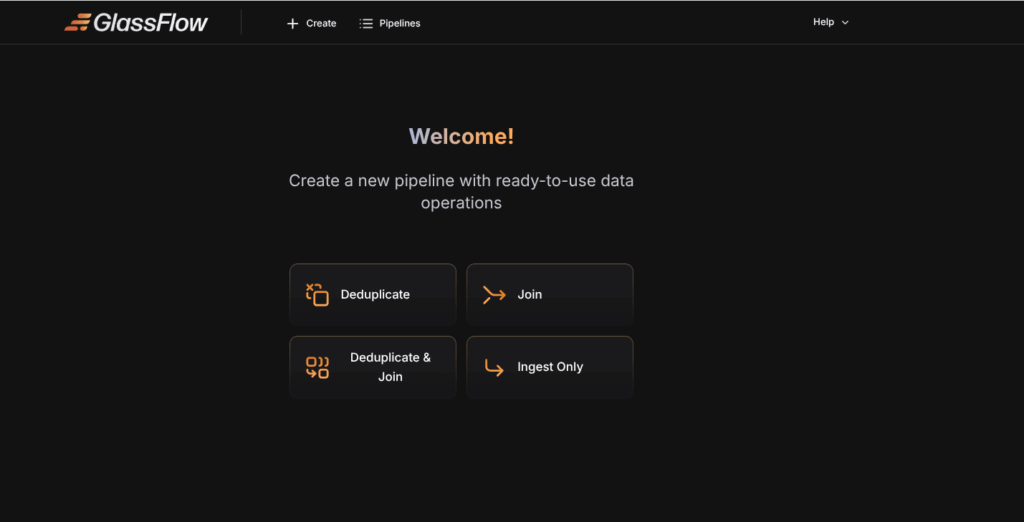
Step 1: Open the Web UI
- Access GlassFlow at
http://localhost:8080or your hosted instance. - Select Pipeline Type → Deduplicate and Join.
Step 2: Configure Kafka Sources
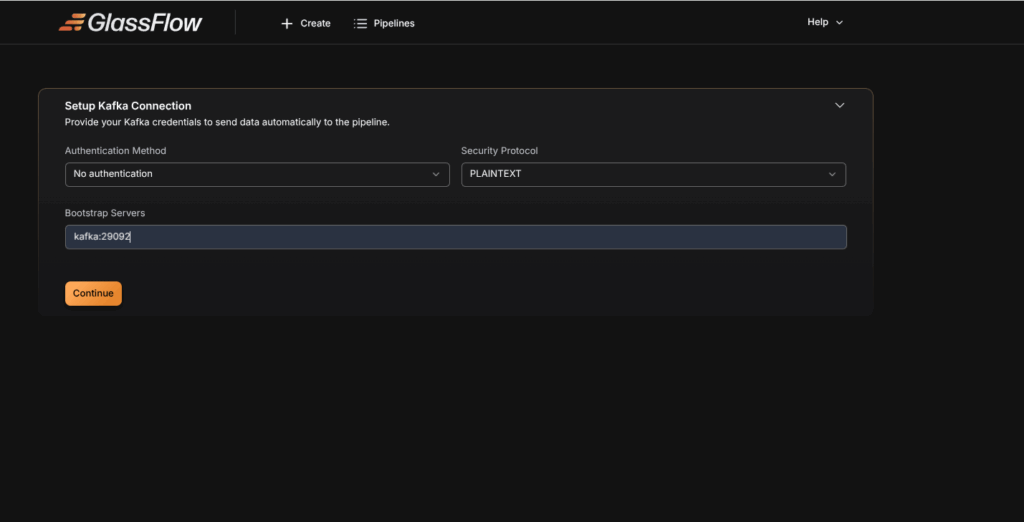
- Enter your Kafka broker address (e.g., kafka: 29092).
- Select the protocol: PLAINTEXT (local testing), No authentication(local hosting), SASL_SSL or SSL (production).
- Provide username, password, and authentication mechanism if required.
Step 3: Create a Kafka topic
We need to create two Kafka topics to perform this pipeline: one as the left topic and the other as the right topic.
We take users_join as the left topic and this Kafka topic can be created by the following code.
docker exec -it kafka kafka-topics --create \
  --topic users_join_topic \
  --bootstrap-server localhost:9092 \
  --partitions 1 --replication-factor 1
Similarly, We take roles_join as the right topic and this kafka topic can be created by the following code.
 docker exec -it kafka kafka-topics --create \
  --topic roles_join_topic \
  --bootstrap-server localhost:9092 \
  --partitions 1 --replication-factor 1
Now that we have successfully created the left and right topics for our pipeline, it is time to ingest data into both topics separately.
We can now ingest the data into the left topic named users_join with the following code.
docker exec -it kafka kafka-console-producer \
  --broker-list localhost:9092 \
  --topic users_join_topic
After executing the above code, you can ingest the following data.
{"id":1,"name":"Alice","email":"alice@example.com","created_at":"2025-09-02 12:00:00"}
{"id":1,"name":"Alice","email":"alice@example.com","created_at":"2025-09-02 12:00:00"}
{"id":2,"name":"Bob","email":"bob@example.com","created_at":"2025-09-02 12:05:00"}
{"id":2,"name":"Bob","email":"bob@example.com","created_at":"2025-09-02 12:05:00"}
Similarly, We can now ingest the data into the right topic named roles_join with the following code.
docker exec -it kafka kafka-console-producer \
  --broker-list localhost:9092 \
  --topic roles_join_topic
After executing the above code, you can ingest the following data.
{"id":1,"role":"Admin"}
{"id":1,"role":"Admin"}
{"id":2,"role":"User"}
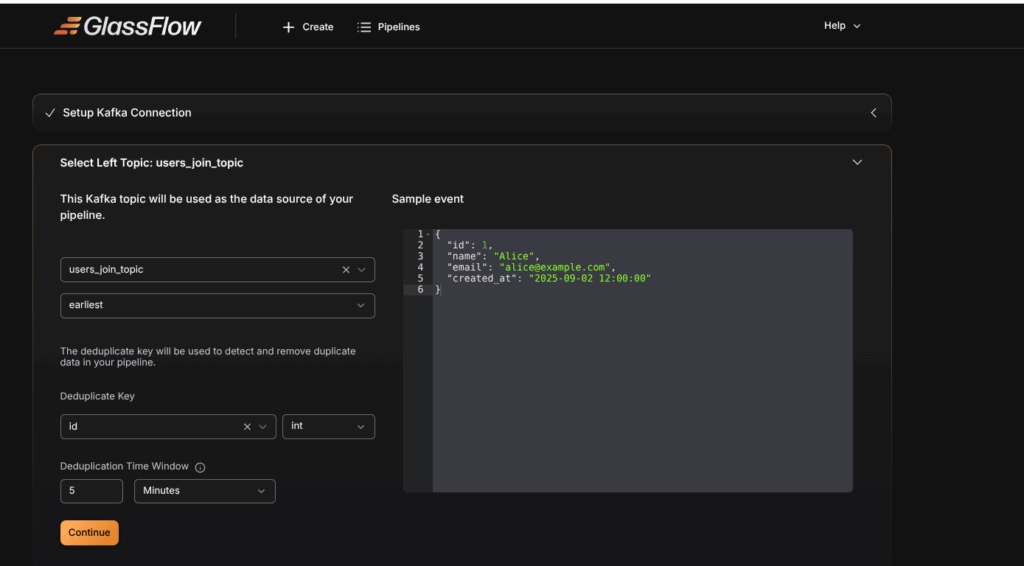
Step 4: Select Left topic: users_join_topic
- Select users_join topic as the left topic in the dropdown menu.
- Choose the initial offset:
earliestto start from the beginning,latestto read new messages only. - The schema is automatically detected by GlassFlow.
- Select the Deduplicate Key that uniquely identifies each record (In our example, We choose id as our duplicate key). The Deduplicate key is used by the Glassflow to detect the duplicates in our data.
- Set the time window (e.g.,
30s,1m,1h,24h). GlassFlow keeps only the first event with a given ID within this window and drops duplicates.
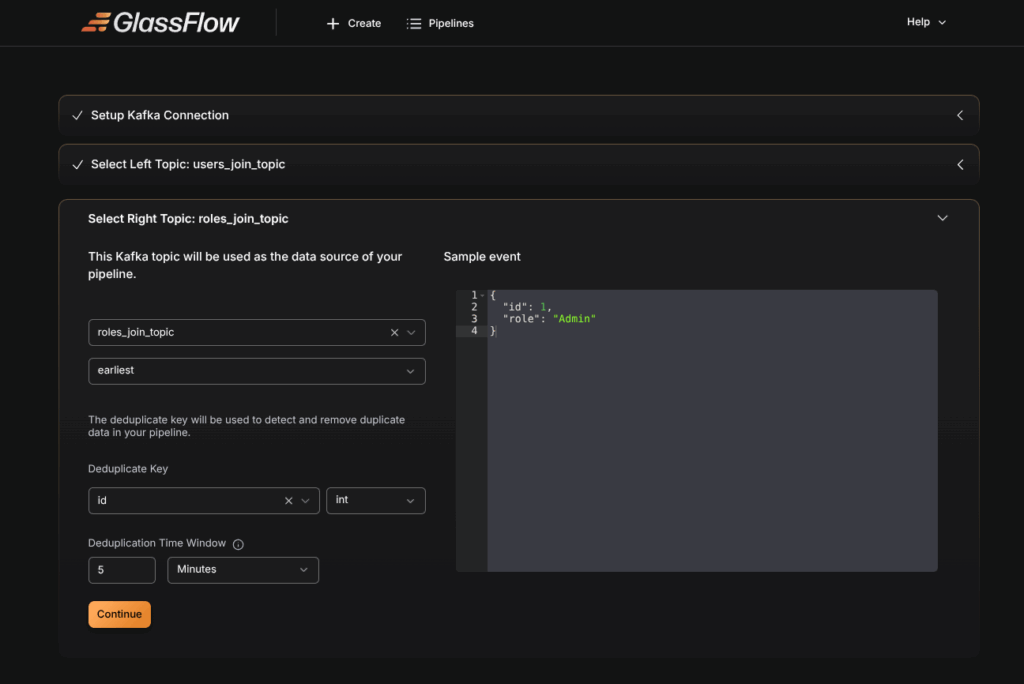
Step 5 : Select Right topic : roles_join_topic
- Select roles_join topic as the left topic in the dropdown menu.
- Choose the initial offset:
earliestto start from the beginning,latestto read new messages only. - The schema is automatically detected by GlassFlow.
- Select the Deduplicate Key that uniquely identifies each record (In our example, We choose id as our duplicate key). The Deduplicate key is used by the Glassflow to detect the duplicates in our data.
- Set the time window (e.g.,
30s,1m,1h,24h). GlassFlow keeps only the first event with a given ID within this window and drops duplicates.
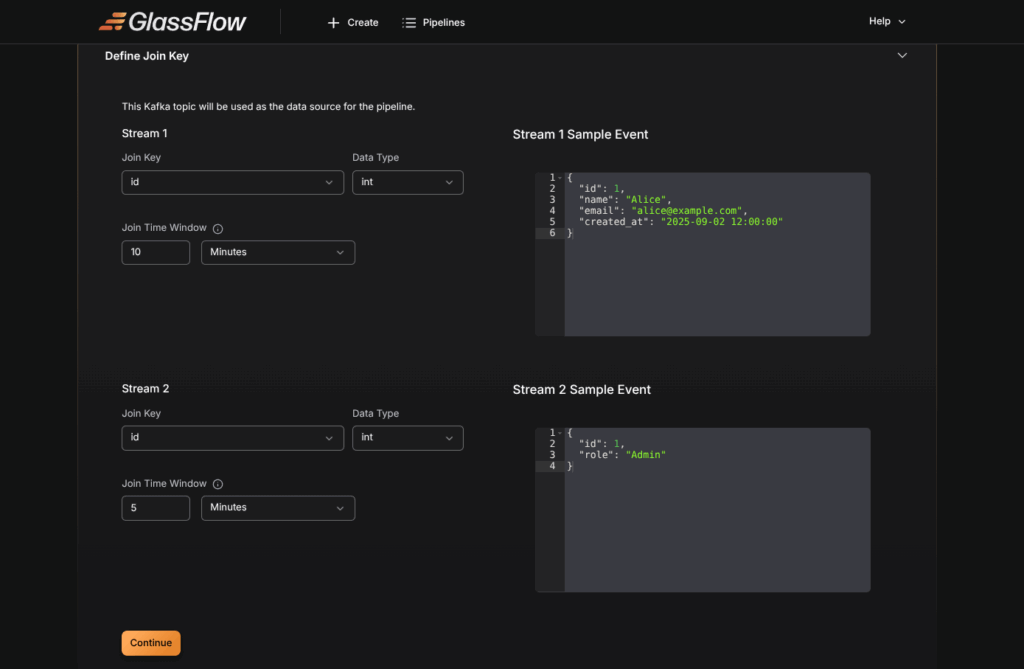
Step 6 : Define Join Key
In this step, we specify the join key that links the left and right Kafka topics. In our example, we choose id as the join key, and we can set the join time window as needed.
Note: The join key must be present in both Kafka topics
Step 7: Setup ClickHouse Connection
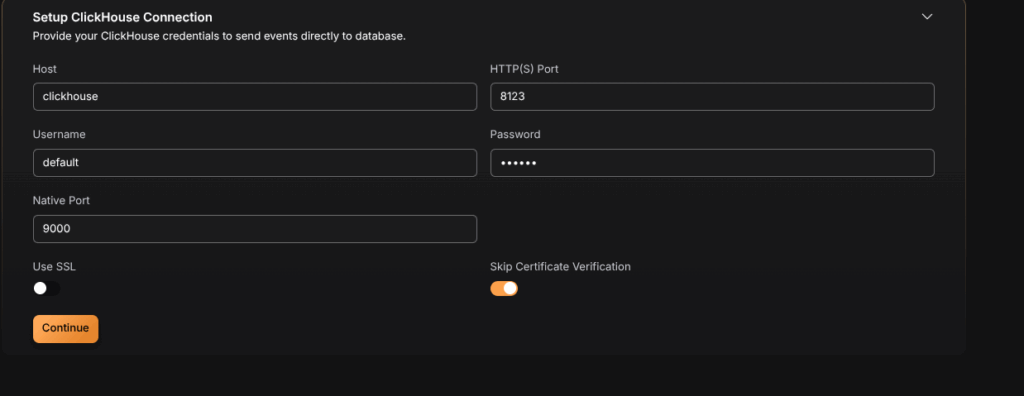
Configure the connection to your ClickHouse database:
Connection Parameters
- Host: Enter your ClickHouse server address
- Port: Specify the ClickHouse port (default:
8123for HTTP,8443for HTTPS) - Username: Your ClickHouse username
- Password: Your ClickHouse password
- Database: Select the target database
- Secure Connection: Enable for TLS/SSL connections
Step 8 : Create a Table in ClickHouse
After establishment of ClickHouse Connection, We need to create a table that matches the schema of our Kafka topics to store the data. The table can be created by the following code.
CREATE TABLE users_roles (
    id UInt64,
    name String,
    email String,
    created_at DateTime,
    role String
)
ENGINE = MergeTree
ORDER BY id;
Step 9 : Select Destination
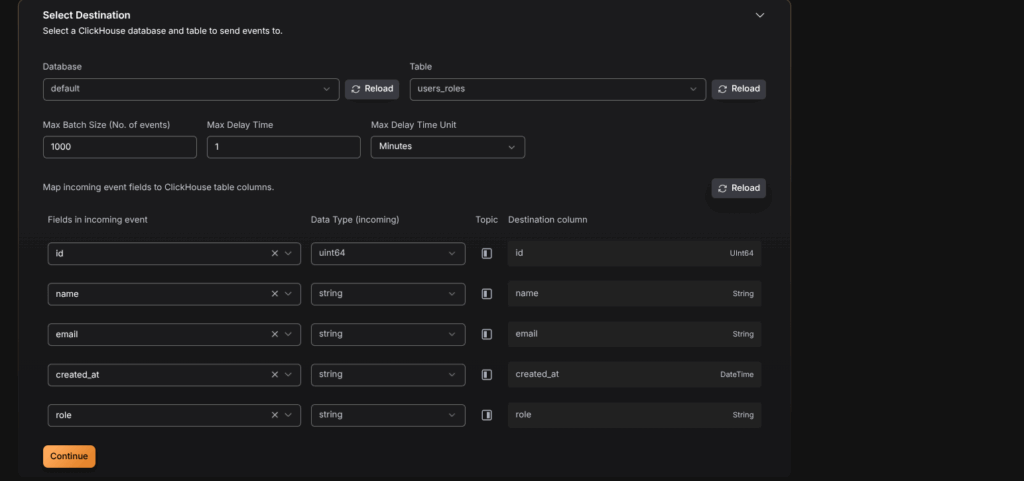
In this step, we define how the processed data will be written to ClickHouse. The configuration includes selecting the database, the destination table, batching options, and mapping incoming event fields to ClickHouse columns.
- Database and Table Selection: The
defaultdatabase is selected, and the destination table chosen isusers_roles. - Batching Parameters:
- Max Batch Size: 1000 events per batch.
- Max Delay Time: 1 minute (ensures data is flushed even if the batch is not full).
- Field Mapping: Each field from the incoming Kafka events is mapped to a corresponding ClickHouse column:
id→id(UInt64)name→name(String)email→email(String)created_at→created_at(DateTime)role→role(String)
This mapping ensures that data arriving from Kafka topics is stored in the correct format within ClickHouse. Once the mappings are complete, clicking Continue finalizes the destination setup and prepares the pipeline for deployment.
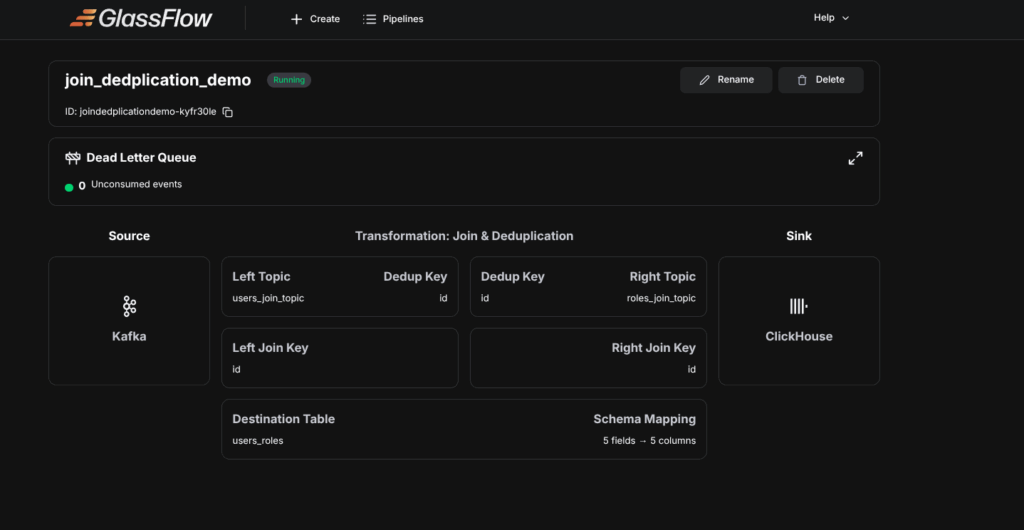
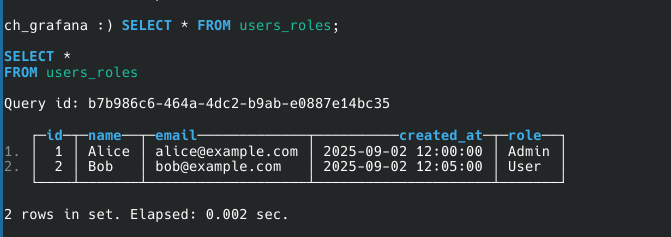
After the above step, The Pipeline will be deployed, Then query from the table, the output would look like this.
Conclusion
The Deduplicate and Join pipeline in GlassFlow delivers clean and enriched data in real time by combining duplicate removal with temporal joins in a single workflow. This approach ensures accuracy, reduces downstream complexity, and optimizes performance for ClickHouse ingestion. By leveraging GlassFlow’s Web UI and built-in correctness guarantees, teams can implement production-ready pipelines with minimal effort and maximum reliability.
Thinking Ahead with ClickHouse
Getting started with GlassFlow locally is a great first step. But when you move toward real-world use cases, you’ll likely want to connect GlassFlow with databases like ClickHouse. Running ClickHouse at scale involves more than just installation – it requires planning for deployment, handling migrations, and ensuring reliable performance in production.
If your team prefers not to manage these complexities in-house, Quantrail Data offers managed ClickHouse services, migration assistance, and dedicated support to simplify operations and let teams stay focused on analytics instead of infrastructure.
Related Blogs on GlassFlow Pipelines
If you are new to GlassFlow pipelines, you may also find these guides useful:
GlassFlow Deduplication Pipeline
References
https://www.pexels.com/photo/macbook-pro-near-white-ceramic-mug-265152