

Introduction
Modern organizations rely on data to power analytics, monitoring, reporting, and business decision-making. As a high-performance analytical database, ClickHouse is commonly used for real-time analytics, observability platforms, log management systems, and business intelligence workloads. In these environments, unexpected data loss can disrupt operations, impact reporting accuracy, and affect business continuity.
Whether caused by accidental deletions, hardware failures, software issues, or configuration mistakes, data loss remains a possibility in any database environment. Implementing a reliable backup strategy is therefore essential to ensure critical data can be recovered quickly when needed.
In this guide, we’ll explore why backups are important in ClickHouse, discuss the available backup types and methods, and demonstrate how to create and restore backups using ClickHouse’s native backup functionality.
Why Backups Matter in ClickHouse®
A backup is a copy of your database data and metadata that can be restored in the event of data loss or system failure. Backups play a critical role in disaster recovery planning and help organizations maintain operational continuity.
Backup vs Replication
One of the most common misconceptions is that replication eliminates the need for backups. While ClickHouse® replication improves availability by maintaining copies of data across multiple nodes, it does not provide protection against every failure scenario.
Consider the following situations:
- A table is accidentally dropped.
- Incorrect data is inserted or deleted.
- Corrupted data is replicated across the cluster.
- Human errors impact all replicas simultaneously.
In these cases, replication alone cannot restore the original data. Backups provide an independent recovery point that allows administrators to recover data from a known good state.
Common Scenarios Requiring Backups
Organizations typically rely on backups to recover from:
- Accidental data deletion
- Incorrect data modifications
- Hardware or storage failures
- Software bugs and corruption
- Disaster recovery events
- Compliance and auditing requirements
Without a well-defined backup strategy, recovering from these situations can be difficult, time-consuming, or impossible.
Understanding ClickHouse® Backup Types
Before implementing backups, it is important to understand the different backup types available and their trade-offs.
Full Backups
A full backup (also called a one-time backup) creates a complete copy of the selected database objects, including both metadata and data.
Example:
Before upgrading a ClickHouse® cluster, an administrator creates a full backup to ensure the entire database can be restored if something goes wrong during the upgrade.
Common use cases:
- Before major upgrades or migrations
- Creating an initial backup baseline
- Long-term archival requirements
Incremental Backups
An incremental backup stores only the data that has changed since the previous backup. This reduces storage consumption and backup duration.
Example:
A log analytics platform receives millions of records daily. Instead of creating a full backup every day, the team performs a weekly full backup and daily incremental backups to capture only new data.
Common use cases:
- Large datasets
- Daily backup schedules
- Storage-optimized backup strategies
Differential Backups
A differential backup captures all changes made since the most recent full backup.
Example:
If a full backup is taken on Sunday, a differential backup created on Wednesday contains all changes made between Sunday and Wednesday.
Common use cases:
- Faster recovery requirements
- Medium-sized environments
- Simpler restore operations
Choosing the Right Backup Type
When selecting a backup type, consider the following:
- Recovery speed: Full backups typically provide the fastest restore process.
- Storage efficiency: Incremental backups require the least storage space.
- Operational complexity: Differential backups offer a balance between storage usage and recovery simplicity.
Many organizations use a combination of weekly full backups and daily incremental backups to achieve both efficient storage utilization and reliable recovery.
Backup Methods Available in ClickHouse®
ClickHouse® supports several approaches for backing up data.
1. Native BACKUP and RESTORE Commands
Modern ClickHouse® versions include built-in backup and restore functionality. These commands provide a convenient and reliable way to create backups directly from ClickHouse®.
2. File System Backups
File system backups involve copying ClickHouse® data directories directly from the server. This method is simple but may require additional precautions to ensure consistency.
3. Storage Snapshots
Infrastructure-level snapshots can capture the state of storage volumes at a specific point in time. This method is commonly used in cloud and enterprise environments.
4. Third-Party Backup Tools
Tools such as clickhouse-backup provide additional automation, scheduling, retention management, and cloud storage integration capabilities.
Each method offers different trade-offs in terms of complexity, performance, scalability, and recovery speed.
Backup Method Comparison
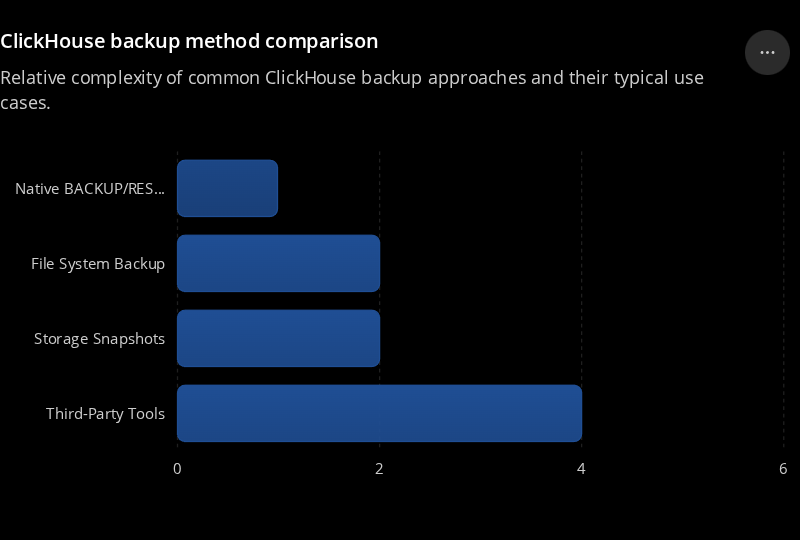
Native BACKUP/RESTORE is the simplest option and suitable for most ClickHouse® deployments. File system backups and storage snapshots are commonly used in infrastructure-focused environments, while third-party tools are often preferred in enterprise environments that require automation, retention policies, and cloud storage integration.
Implementing Backups with Native ClickHouse® Commands
ClickHouse® provides built-in BACKUP and RESTORE commands that simplify backup management while supporting local and remote storage destinations.
Prerequisites
Before creating backups:
- Ensure the ClickHouse® version supports BACKUP and RESTORE commands.
- Configure a backup destination.
- Verify sufficient storage space.
- Confirm appropriate user permissions.
1. Configuring a Backup Destination
Before using the BACKUP command, a backup disk must be configured within ClickHouse.
Example configuration:
<storage_configuration>
    <disks>
        <backups>
            <type>local</type>
            <path>/backups/</path>
        </backups>
    </disks>
</storage_configuration>
After applying the configuration and restarting ClickHouse®, the configured disk can be referenced in backup commands.
2. Creating a Full Database Backup
The following command creates a backup of an entire database:
BACKUP DATABASE analytics
TO Disk('backups', 'analytics_backup.zip');
This command stores the backup in the configured backup disk location.
3. Creating a Table Backup
To back up a specific table:
BACKUP TABLE analytics.events
TO Disk('backups', 'events_backup.zip');
This approach is useful when only a subset of data requires protection.
4. Creating an Incremental Backup
ClickHouse also supports incremental backups by referencing a previous backup.
BACKUP DATABASE analytics
TO Disk('backups', 'analytics_incremental.zip')
SETTINGS base_backup = Disk('backups', 'analytics_full_backup.zip');
This backup stores only the data that has changed since the base backup.
5. Restoring a Database Backup
To restore a database from a backup:
RESTORE DATABASE analytics
FROM Disk('backups', 'analytics_backup.zip');
The restore operation recreates database objects and restores the associated data.
6. Restoring a Table Backup
To restore a single table:
RESTORE TABLE analytics.events
FROM Disk('backups', 'events_backup.zip');
Verifying Backup Operations
After creating a backup:
- Verify that backup files exist in the target location.
- Review ClickHouse logs for errors.
- Periodically perform test restores.
- Validate data integrity after restoration.
Backup verification helps ensure backups remain usable when recovery is required.
Backup Best Practices
To improve backup reliability and ensure successful recovery, consider the following best practices
- Automate Backup Schedules
- Manual backups can easily be forgotten. Automating backup operations ensures consistency and reduces operational risk.
2. Store Backups in Multiple Locations
- Avoid storing backups only on the same server where ClickHouse is running. Maintaining copies in remote or cloud storage improves resilience.
3. Test Restore Procedures Regularly
- Creating backups is only part of the process. Regular restore testing confirms that backups can be successfully recovered when needed.
Define a Retention Policy
Establish retention rules based on business and compliance requirements. A common approach is:
- Daily backups for 30 days
- Weekly backups for 3 months
- Monthly backups for 1 year
Monitor Backup Operations
Track backup status, storage utilization, and backup failures to ensure issues are detected and resolved quickly.
By following these practices, organizations can improve data protection, reduce recovery time, and maintain reliable backup operations.
Exploring ClickHouse® for Your Analytics?
At Quantrail Data, we help teams run ClickHouse® reliably for real-time analytics – from Kubernetes deployments and migrations to performance tuning in production.
We see these challenges firsthand while supporting demanding analytics workloads. In one recent engagement, a customer achieved near bare-metal performance with ClickHouse® in production – a story we’ve shared here:
Success Story: Quantrail Bare-Metal ClickHouse® Deployment
If you’re evaluating ClickHouse® or trying to get more out of an existing setup, we’re happy to share practical lessons from real-world deployments.
Contact
Quantrail Data
Conclusion
Backups play a critical role in protecting ClickHouse® environments from accidental data loss, corruption, and infrastructure failures. While replication improves availability, it should not be considered a replacement for backups.
Understanding the different backup types and available backup methods allows organizations to select an approach that aligns with their operational and recovery requirements. By leveraging ClickHouse’s native BACKUP and RESTORE functionality, automating backup schedules, and regularly testing restore procedures, teams can build a reliable backup and recovery strategy that ensures long-term data protection.
References
- ClickHouse® Cloud Documentation – Backup and Restore Using Commands
- Quantrail Data – Reliable ClickHouse® Backups: From Simple Setups to Production-Ready Strategies
- ClickHouse® Documentation – Backup and Restore Overview