


Modern analytics platforms rely on reliable pipelines that move operational data into analytical storage systems.
Many organizations follow an ELT architecture, where data is extracted from operational databases and loaded into analytical systems before transformation.
                                     Operational Database
                                             │
                                             ▼
                                       Data Ingestion
                                             │
                                             ▼
                                     Analytical Database
                                             │
                                             ▼
                                       Transformations
Instead of building custom ingestion frameworks, teams increasingly use tools like Airbyte to replicate data between systems.
In this article, will explore a practical setup that replicates data from Microsoft SQL Server into ClickHouse using Change Data Capture (CDC).
The pipeline looks like this:
                                           MSSQL
                                             │
                                             ▼
                                          Airbyte
                                             │
                                             ▼
                                         ClickHouse
The goal is to perform:
- an initial historical backfill
- followed by CDC-based incremental replication
This pattern is widely used in modern analytics architectures.
Architecture Overview
For local experimentation, Airbyte can run inside a lightweight Kubernetes cluster created with kind.
The architecture looks like this:
                                    +----------------------+
                                    |     MSSQL Server     |
                                    |    (CDC Enabled)     |
                                    +----------+-----------+
                                               |
                                               | Change Data Capture
                                               v
                                    +----------------------+
                                    |        Airbyte       |
                                    |   (Running on kind)  |
                                    +----------+-----------+
                                               |
                                               | ELT ingestion
                                               v
                                    +----------------------+
                                    |      ClickHouse      |
                                    |   Analytics Storage  |
                                    +----------------------+
Airbyte manages the extraction and replication process, while ClickHouse serves as the analytical database.
Running Airbyte Locally
Airbyte provides a CLI utility called abctl, which deploys the platform locally.
Install Airbyte:
curl -LsfS https://get.airbyte.com | bashStart the local installation:
abctl local installBehind the scenes this creates a Kubernetes cluster inside Docker and deploys Airbyte services.
Docker
 └── kind cluster
      └── Airbyte services
           ├── airbyte-server
           ├── airbyte-worker
           ├── airbyte-temporal
           └── airbyte-db
You can verify the deployment with:
kubectl --kubeconfig ~/.airbyte/abctl/abctl.kubeconfig get pods -AThe Airbyte UI will be available at:
http://localhost:8000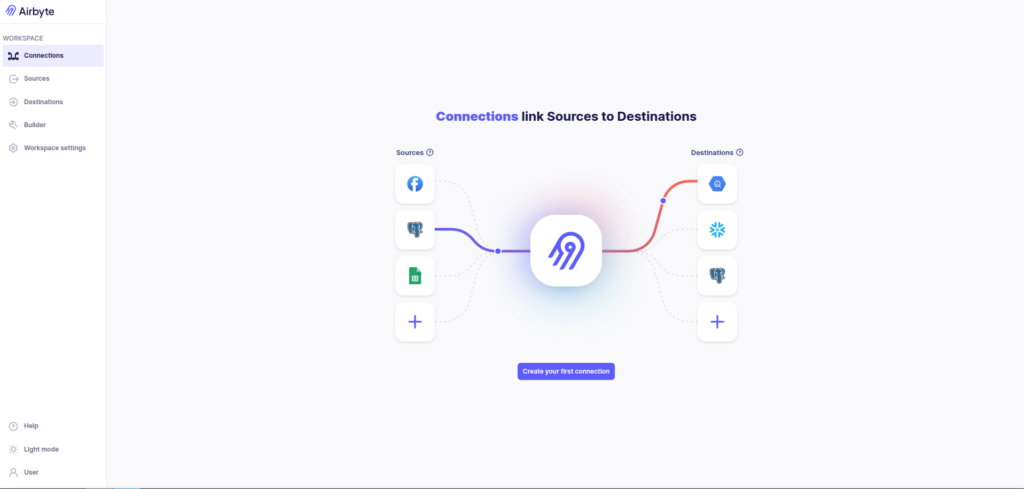
Airbyte UI running locally after installation.
Running MSSQL and ClickHouse Locally
To test the pipeline locally, we can run both the source and destination databases with Docker.
Example docker-compose.yml:
services:
  mssql:
    image: mcr.microsoft.com/mssql/server:2022-latest
    container_name: mssql
    environment:
      ACCEPT_EULA: "Y"
      SA_PASSWORD: "StrongPass!123"   # MUST meet complexity rules
    ports:
      - "1433:1433"
    volumes:
      - mssql_data:/var/opt/mssql
    restart: unless-stopped

  clickhouse:
    image: clickhouse/clickhouse-server:23.8
    container_name: clickhouse-airbyte-mss
    ports:
      - "8125:8123"   # HTTP (Airbyte uses this)
      - "9007:9000"   # Native client
    environment:
      CLICKHOUSE_USER: airbyte
      CLICKHOUSE_PASSWORD: StrongPass!123
    volumes:
      - clickhouse_data:/var/lib/clickhouse
    restart: unless-stopped
volumes:
  mssql_data:
  clickhouse_data:
Start the containers:
docker compose up -dCreating the MSSQL Source Connector
The first step in Airbyte is configuring the source system.
Create a new source connector:
Source → Microsoft SQL ServerEnter the connection details such as:
- host
- port
- database
- username
- password
- Update Method
Airbyte will validate the connection before saving the source.
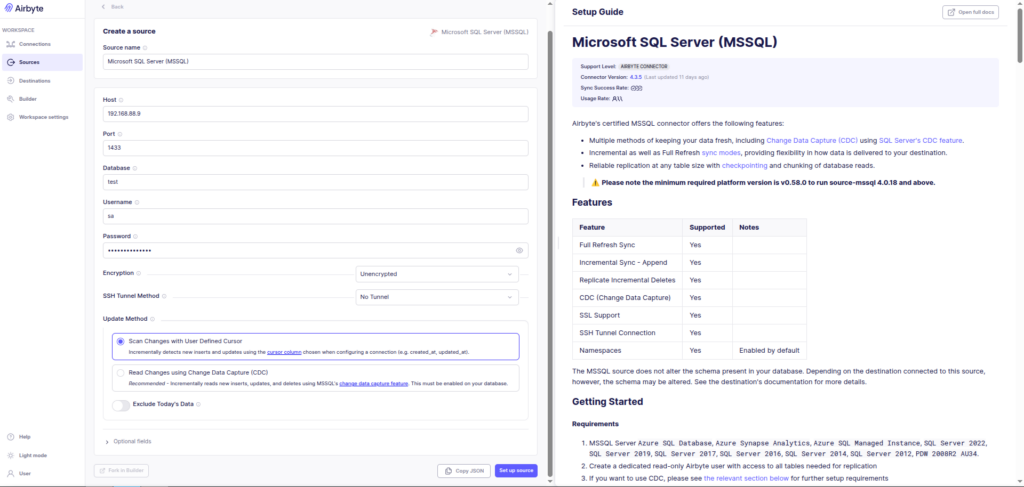
Configuring the Microsoft SQL Server source connector in Airbyte.
Configuring ClickHouse as the Destination
Next we configure the analytical destination.
Create a new destination connector:
Destination → ClickHouseProvide the connection details for the ClickHouse instance.
Only the database needs to exist beforehand.
Airbyte automatically creates the tables required for ingestion.
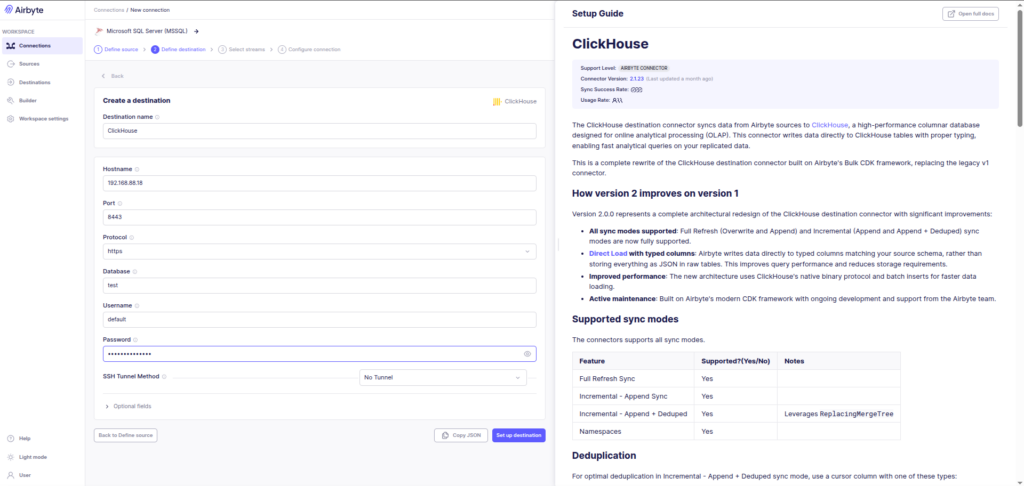
Configuring ClickHouse as the analytics destination.
Performing the Initial Historical Backfill
Once the source and destination are configured, we create a connection between them.
During the first sync, the pipeline performs a historical backfill.
Recommended configuration:
Sync Mode → Full Refresh
Destination Mode → Overwrite
Internally the process looks like this:
                                  MSSQL tables
                                       │
                                       ▼
                             Airbyte extracts all rows
                                       │
                                       ▼
                     ClickHouse tables created automatically
                                       │
                                       ▼
                                 Data inserted
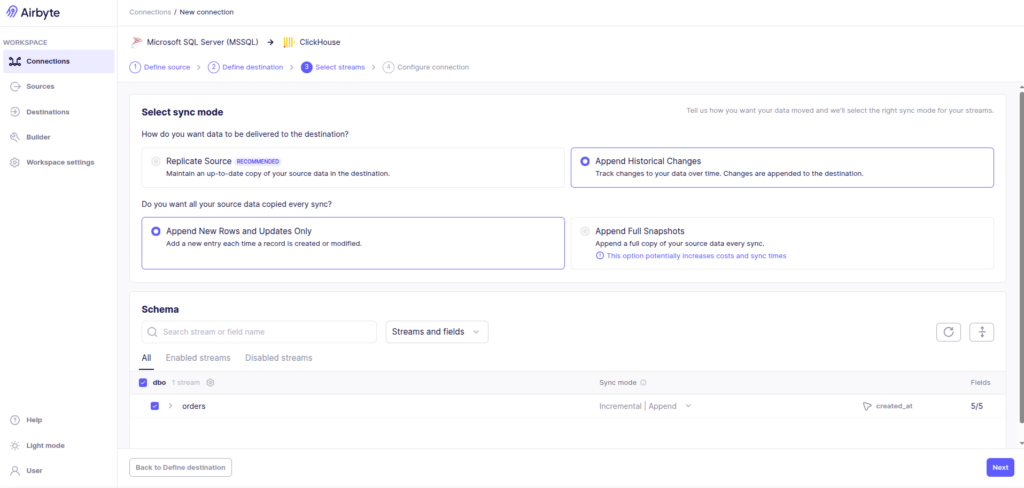
Configuring a full refresh for the initial historical load.
Switching to CDC-Based Replication
After the historical backfill completes, the pipeline can switch to CDC-based incremental replication.
Connection settings:
Sync Mode → Incremental
Destination → Append
Update Method → Read Changes using CDC
In SQL Server, CDC works by capturing changes from the transaction log and exposing them through CDC system tables.
                                  Transaction Log
                                       │
                                       ▼
                               SQL Server CDC tables
                                       │
                                       ▼
                              Airbyte reads CDC tables
                                       │
                                       ▼
                             ClickHouse receives updates
This allows the pipeline to capture:
INSERT
UPDATE
DELETE
without scanning the entire table again.
Verifying Data in ClickHouse
After the sync completes, the replicated tables will appear in ClickHouse.
You can verify this using the ClickHouse client.
Example query:
SELECT count(*) FROM orders;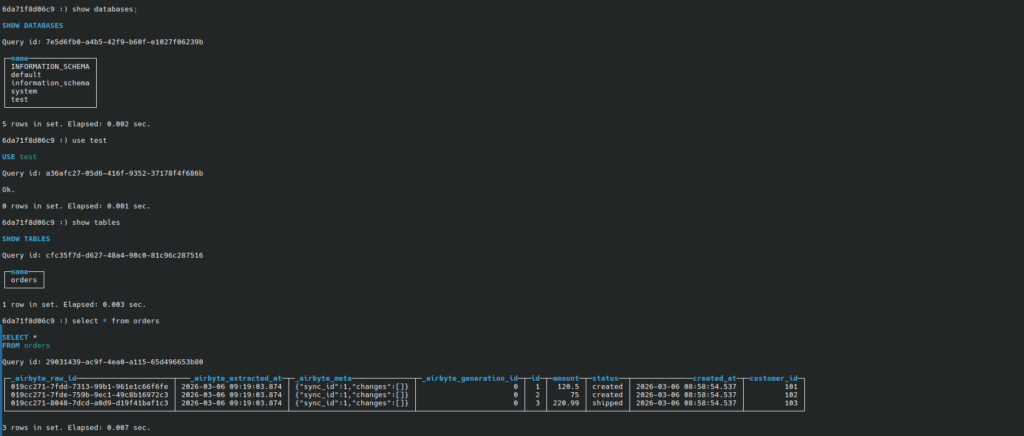
Verifying replicated data in ClickHouse after the Airbyte sync completes.
Understanding Airbyte Metadata Columns
Airbyte creates several metadata columns during ingestion:
_airbyte_raw_id
_airbyte_extracted_at
_airbyte_meta
_airbyte_generation_id
These columns are used internally for:
- ingestion state tracking
- incremental sync checkpoints
- deduplication
- retry safety
In many production architectures, these tables are treated as raw ingestion tables, and analytical queries run on cleaned models derived from them.
Example transformation:
CREATE TABLE orders_clean AS
SELECT
    id,
    customer_id,
    amount,
    status,
    updated_at
FROM orders;
Airbyte vs Airflow
Airbyte is often used alongside Apache Airflow.
However, they serve different purposes.
| Tool | Role |
|---|---|
| Airbyte | Data ingestion and replication |
| Airflow | Workflow orchestration |
Example architecture:
                                  Airflow DAG
                                       │
                                       ▼
                                Trigger Airbyte Sync
                                       │
                                       ▼
                               Airbyte moves data
                                       │
                                       ▼
                          ClickHouse stores analytics data
Airflow manages scheduling and orchestration, while Airbyte focuses on reliable data movement.
Final Thoughts
Using tools like Airbyte makes it possible to build reliable ingestion pipelines without writing custom extraction systems.
In this setup we created a simple but realistic pipeline:
                                      MSSQL
                                        │
                                        ▼
                                     Airbyte
                                        │
                                        ▼
                                    ClickHouse
The key principles behind this pattern are:
- perform a historical backfill first
- switch to CDC for incremental replication
- treat ingestion tables as raw data layers
- perform transformations later using ELT
This architecture scales well from local experimentation to production analytics systems.
Exploring ClickHouse® for Your Analytics?
At Quantrail Data, we help teams adopt and operate ClickHouse® for real-time analytics.
This includes:
- migrations from traditional databases
- Kubernetes-based deployments
- ingestion pipeline design
- performance tuning for production workloads
We frequently support teams transitioning analytics systems to ClickHouse®, including building ingestion pipelines and CDC-based data movement architectures similar to the one discussed here.
In one recent engagement, a customer achieved near bare-metal performance with ClickHouse® in production, a deployment story we’ve shared here:
Success Story: Quantrail Bare-Metal ClickHouse® Deployment
If you’re evaluating ClickHouse® or looking to optimize an existing deployment, we’re happy to share practical lessons from real-world deployments.
Contact
Quantrail Data
References
Airbyte Documentation
ClickHouse Documentation
Microsoft SQL Server CDC Documentation
Airflow and Airbyte
kind Documentation